
Xib
本章主要记录可视化编程的一些问题,以及如何解决这些问题。附带可视化编程的一些技巧。比如在XIB添加自定义属性、设置按钮的选中状态、设置等比例控件等等
使用xib进行开发时,经常需要设置文字颜色、控制器背景色、主题颜色等,通过在Assets中添加自定义颜色可以让我们开发过程中快速选择,加快开发进度。
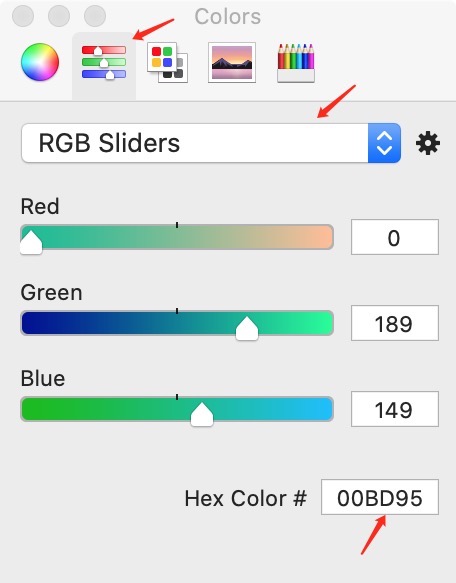
在xib中添加自定义颜色,选择Background最后的Custom自定义颜色,在第二个选项"颜色滑块"中选择RGB Sliders,在底部可以输入十六进制颜色,如下图:
* iOS16 在XIB中使用 `DatePicker` 时,需要将 Preferred Style 设置为 Whells
* iOS15之后,系统对 UIButton 做了优化,添加`UIButton.Configuration`配置,如果还是想适配iOS15之前的系统需要把`style`设置成`Default`,不然按钮一直显示文字File's Owner
使用Xib自定义View的时候有两种方式,使用用File's Owner或者直接定义View。它们之间的区别在于:
File's Owner: self 是自定义类型的一个实例, 要将 View 拉为约束添加在 self, 可以直接添加在storyboard/xib上使用, 在代码中使用时, 要使用对象方法, Bundle.main.loadNibNamed 方法中 owner 为 self。View: self 是自定义类型, 类型不能直接添加在 storyboard/xib 上, 代码中使用时要使用类型方法, Bundle.main.loadNibNamed 方法中 owner 为 nil
File's Owner 加载方式
- 通过 init 方法加载,
MoraSelectView是xib文件,设置File's Owner的Class为MoraSelectView
    class MoraSelectView: UIView,NibLoadable {

        @IBOutlet var contentView: UIView!//xib 中的 View 拉为约束 contentView

        //代码创建, 执行此方法, 不执行 init?(coder aDecoder: NSCoder)
        override init(frame: CGRect) {
            super.init(frame: frame)
            awakeFromNib()
        }

        //添加在 storyboard 上, 执行此方法
        required init?(coder aDecoder: NSCoder) {
            super.init(coder: aDecoder)
        }

        override func awakeFromNib() {
            super.awakeFromNib()
            setupContentView()
        }

        func setupContentView() {
        //owner 一定要为 self, 不能为 nil
            let contentView = Bundle.main.loadNibNamed("MoraSelectView", owner: self, options: nil)?.first as! UIView
            contentView.frame = self.bounds
            contentView.autoresizingMask = [.flexibleWidth, .flexibleHeight]
            addSubview(contentView)
        }
}- 通过协议的方式加载
    protocol NibLoadableProtocol { }
    extension NibLoadableProtocol where Self : UIView {
        //设置 File's Owner 的 CustomClass
        //实例方法
        func loadNibFileOwner(_ nibNmae: String? = nil) -> UIView {
            //获取实例的类型
            let object: AnyObject = object_getClass(self)!
            //"\(object)": AntennaParameters.XXXXXX
            //获取真正的类型名
            let className = type(of: object).description().components(separatedBy: ".").last

            let contentView = Bundle.main.loadNibNamed(nibNmae ?? className!, owner: self, options: nil)?.first as! UIView
            contentView.frame = self.bounds
            contentView.autoresizingMask = [.flexibleWidth, .flexibleHeight]
            addSubview(contentView)
            return contentView
        }
    }

    //让 CustomView_Fileowner 服从协议
    class: CustomView_Fileowner, NibLoadableProtocol
        @IBOutlet var contentView: UIView!

        //代码创建, 执行此方法, 不执行 init?(coder aDecoder: NSCoder)
        override init(frame: CGRect) {
            super.init(frame: frame)
            awakeFromNib()
        }

        //添加在 storyboard 上, 执行此方法
        required init?(coder aDecoder: NSCoder) {
            super.init(coder: aDecoder)
        }

        override func awakeFromNib() {
            super.awakeFromNib()
            //协议方法
            contentView = loadNibFileOwner()
        }
}View 加载方式
- 自定义协议,自定义类遵守协议
    protocol NibLoadableProtocol { }
    extension NibLoadableProtocol where Self : UIView {
        //类型方法
        static func loadNib(_ nibNmae: String? = nil) -> Self {
            return Bundle.main.loadNibNamed(nibNmae ?? "\(self)", owner: nil, options: nil)?.first as! Self
        }
    }

extension CustomView: NibLoadableProtocol { } // 自定义类遵守协议- 或者定义类方法直接加载
    //View 中, 类方法
    class func newInstance() -> CustomView {
        //owner 为 nil
        return Bundle.main.loadNibNamed("CustomView", owner: nil, options: nil)?.first as! CustomView
    }

    //使用类型方法创建
    let viewView = CustomView.newInstance()
    viewView.frame = CGRect(x: 50, y: 400, width: 200, height: 100)
view.addSubview(viewView)Swift可使用第三方
pod 'Reusable', '~> 4.1.2',只要继承相关协议就可以直接调用。
@IBInspectable 添加自定义属性
@IBDesignable和@IBInspectable是iOS8的新特性,可以实时渲染在interface builder上,直接对值进行修改视能实时发生变化。参考文档
比如layer.borderWidth、borderColor、cornerRadius这些属性在xib上是不能直接设置的。@IBInspectable利用运行时机制,可以把这些属性映射到xib上,同时还可以映射自定义的属性。举例说明:
@@IBDesignable  //@IBDesignable关键字用来声明一个类是可以被设计的,可以实时渲染在interface builder 上
class SpaceButton: UIButton{
    //@IBInspectable关键字用来声明一个属性,可以在interface builder上修改该属性,就可以实时渲染border的变化
    @IBInspectable var space: CGFloat = 10.0

    override var intrinsicContentSize: CGSize{
        let size = super.intrinsicContentSize
        return CGSize(width: size.width + space, height: size.height)
    }
}使用
@IBInspectable添加属性时,需要给类型显式加上类型标识,不然XIB里面不显示。
获取View真实宽度
使用xib编程,在viewDidLoad或者awakeFromNib方法中给 View 设置圆角时,遇到只有左边是圆角,右边不显示圆角的情况。
原因是在设置圆角时,View的宽度还是你在xib中使用模拟器的宽度,并不是它真实屏幕的宽度。,解决方案是在layoutSubViews或者viewDidLayoutSubviews方法里设置圆角。或者是通过@IBInspectable在xib上添加View属性,进行直接赋值。
UITbaleView的 HeaderView 使用 xib 开发时,在tableView.tableHeaderView = headerView这句话之前我们需要对 headerView 的 frame 进行重新设置,不然headView的高度就是xib模拟器中的高度
UITableViewCell 在xib中获取到的宽度,一直是320。在一种分区圆角的界面中,需要在 代理方法tableview: willDisplay: forRowAt:方法中获取到cell内部控件的真实宽度。 可以使用约束,在layoutSubViews里面对内部控件的 frame 进行重新赋值。
修改约束值
- 修改比例约束值
// aspect 是比例约束  修改图片宽度比
NSLayoutConstraint.deactivate([aspect])
aspect = NSLayoutConstraint(item: logoView, attribute: .width, relatedBy: .equal, toItem: logoView, attribute: .height, multiplier: 1.5, constant: 0)
NSLayoutConstraint.activate([aspect])- 修改固定宽高约束值
_heightConstraint.constant = 12;iOS 15 系统遇到过的适配问题
- Must translate autoresizing mask into constraints to have _setHostsLayoutEngine:YES Xcode 13
仅在 iOS 15 上的 Xcode 13.0 也发生了同样的事情,需要将cell视图设置为Layout: Autoresizing Mask ,如下图: 
仅在 iOS 15 上的 Xcode 13.0 ,使用stacke时,需要注意它默认是有背景的。
UIScrollView
在Xib中使用UIScrollView的时候,需要注意在iOS11之后,UIScrollView增加了framelayoutGuide和contentLayoutGuide。
* `framelayoutGuide:` 框架布局指南,就是指框架本身,这里的框架就是UIScrollView
* `contentLayoutGuide:` 内容布局指南,滚动视图内容的布局指南,指的UIScrollView里面的布局iOS11以上以下步骤进行添加:
1. xib中添加scrollview,添加对父控件约束
2. ScrollView内部添加UIView,设置四周边距跟`contentLayoutGuide`相等,设置完成后,修改比例为1
3. 设置UIView的宽或者高跟`framelayoutGuide`相等,设置好之后会报错,先给View对应的宽或者高一个固定值,防止报错
4. 如果是宽相等,纵向滑动,如果是高相等,横向滑动。如果是 iOS11 以下在XIB中使用UIScrollView按照以下的步骤:
1. xib中添加scrollview,添加对父控件约束
2. scrollview取消 Content Layout Guides 按钮,取消后,不再使用 framelayoutGuide 和 contentLayoutGuide
3. scrollview内部添加UIView,设置四周边距,如果上下滑动设置跟scrollview等宽,这个时候还会报错,不管它
4. 在UIview上 设置 我们想要添加的控件,注意要设置顶部跟底部跟UIview的约束
5. 注意CongtentView的宽度,设置跟ScrollView的宽度一致,
6. 删除ContentView约束上的固定宽高约束在利用xib绘制UIScrollerView时,全屏时页面总是出现偏移一个状态栏高度。设置Content Insets为Never或者代码中设置:
if (@available(iOS 11.0, *)){
    [[UIScrollView appearance] setContentInsetAdjustmentBehavior:UIScrollViewContentInsetAdjustmentNever];
    [UITableView appearance].estimatedRowHeight = 0;
    [UITableView appearance].estimatedSectionHeaderHeight = 0;
    [UITableView appearance].estimatedSectionFooterHeight = 0;
}⚠️注意这里有个坑: 在iOS16的系统中,也就是iPhone14的设备。在拥有系统导航栏的时候,UIViewController的高度是整体屏幕的高度,在iOS16之前的设备上,UIViewController的高度是
屏幕高度 - 导航栏高度 - 状态栏高度。
UITableView
注册xib创建的UITableViewCell
- OC版本注册cell
[_tableView registerNib:[UINib nibWithNibName:@"PersonMessageCell" bundle:nil] forCellReuseIdentifier:@"PersonMessageCell"];- Swift版本注册cell
tableView.register(UINib(nibName: "TableViewCell", bundle: Bundle.main), forCellReuseIdentifier: "TableViewCell")tableHeaderView 自适应高度
需要完成一个需求: tableview的headView中有一个可换行的label, 需要headview写入数据时, tableview的headView的高度自适应. 不手动计算字符串的高度;
- 在headview的操作:
- headview 的 xib,所有的控件约束要保证是正确的,从上到下的约束要确保有,并且是正确的.
- 在headview的.m文件中,要设置高度变化label允许显示的最大宽度:
contentL.preferredMaxLayoutWidth = UIScreen.main.bounds.size.width - 100,设置numberofline = 0,这个label就可以自动计算出自身的高度了
- 在 controller 中对 headview 进行赋值,赋值之后需要重置 headView 的 frame:swift
//使表视图的高度自适应
func layoutHeadView(){
    //利用systemLayoutSizeFittingSize:计算出真实高度,当前方法计算的时间开销是十分大的
    let height = tableView.tableHeaderView?.systemLayoutSizeFitting(UIView.layoutFittingCompressedSize).height ?? 0.0
    guard var rect = tableView.tableHeaderView?.frame else {return}
    rect.size.height = height
    //修改tableHeaderView的frame
    self.tableView.tableHeaderView?.frame = rect
}
这样 headView 作为 tableview 的头部视图就可以根据内容自适应高度了。在每一次headView的数据更改之后, 都记得要调用layoutHeadView方法
UIButton
UIButton的默认布局左边是图片,右边是文字。我们经常会遇到右边是图片,左边是文字的情况,可以通过给分类添加方法的方式解决,也可以在Xib右侧面板选中Semantic属性选择Right-To-Left的方式来解决,这样就文字在左边,图片在右边
* Unspecified: 视图的默认值,当从左到右和从右到左的布局进行切换时,视图被翻转。
* Playback: 表示播放控制的视图,如播放,倒带或快进按钮或播放头清洗器。在从左到右和从右到左的布局之间切换时,这些视图不会翻转。
* Force Left-To_Right: 始终使用从左到右布局显示的视图。
* Force Right-To-Left: 始终使用从右到左的布局显示的视图。设置UIButton 文字 和 图片 的间隔技巧,有时候我们需要一些选中按钮,图片和文字之间是有间隔的,我们又希望 Button 的宽度自适应。可以通过自定义按钮,重写intrinsicContentSize属性设置图标和文字的间距。
1. 设置UIButton居中和侧边约束,不设置按钮宽度,使宽度自适应,可以设置高度扩大按钮的点击范围
2. 在Xib中设置按钮的`Image Insets`右侧的间距,比如我们设置距离文字的间距是`10`
3. 自定义`SpaceButton`,XIB中使用此按钮,设置`space`间距
    ```swift
    class SpaceButton: UIButton{
        // 图标和文字的间距
        @IBInspectable var space: CGFloat = 10.0

        override var intrinsicContentSize: CGSize{
            let size = super.intrinsicContentSize
            return CGSize(width: size.width + space, height: size.height)
        }
    }
```在一种左右是半圆,中间是文字的Label标签中,也可以自定义UILabel的方式扩大UILabel的真实宽度
iOS15之后,UIButton多了
UIButton.Configuration配置,不需要再搞这样的技巧了,iOS15可以直接在xib上配置按钮图片和文字的间距、图片的位置、按钮的边框、前置颜色、圆角等等
UILabel内容显示优先级
intrinsicContentSize:固有大小。意思就是如果没有指定大小,控件就按照这个大小来。 像UILabel、UIImageView、UIButton等这些组件都有 Intrinsic Content Size 属性。
当我们设置UILabel时,只要给它位置就可以,它自己会计算大小
当一行有两个UILable的时候,如果不给他们设置优先级,就会造成Intrinsic冲突。因为当两个label显示的内容超过一行时,它们不知道要优先显示谁。需要用到下面的属性:
Content Hugging Priority:内容拥抱优先级,默认是251。如果组件的此属性优先级比另一个组件此属性优先级高的话,那么这个组件就保持不变,另一个可以在需要拉伸的时候拉伸swiftopen func contentHuggingPriority(for axis: NSLayoutConstraint.Axis) -> UILayoutPriority open func setContentHuggingPriority(_ priority: UILayoutPriority, for axis: NSLayoutConstraint.Axis)Content Compression Resistance Priority: 内容压缩阻力优先级。优先级越大,视图中的内容越难被压缩swiftopen func contentCompressionResistancePriority(for axis: NSLayoutConstraint.Axis) -> UILayoutPriority open func setContentCompressionResistancePriority(_ priority: UILayoutPriority, for axis: NSLayoutConstraint.Axis)
如果只是两个UILabel冲突的时候,只要将不想被压缩内容的控件
Content Compression Resistance Priority优先级调大即可
xib中使用动画
在xib中使用动画,首先需要将约束添加为属性。然后修改属性的值,在动画方法中调用layoutIfNeeded方法
@objc func dismissView(){
    cententY.constant = 120
    UIView.animate(withDuration: 0.3) { [weak self] in
        self?.layoutIfNeeded()
    } completion: { isfinish in
        self.removeFromSuperview()
    }
}